Replit Agent 4 Hands-On: Four New Features Explained
Key insights
- The infinite canvas turns design into an interactive, visual conversation with AI instead of a text-only chat.
- Each task runs in an isolated version of your app, so failed experiments never break the main project.
- Parallel agents eliminate the wait-then-work cycle by letting you assign multiple features at the same time.
- One workspace can now produce apps, slides, videos, and dashboards from a single codebase.
This is an AI-generated summary. The source video may include demos, visuals and additional context.
In Brief
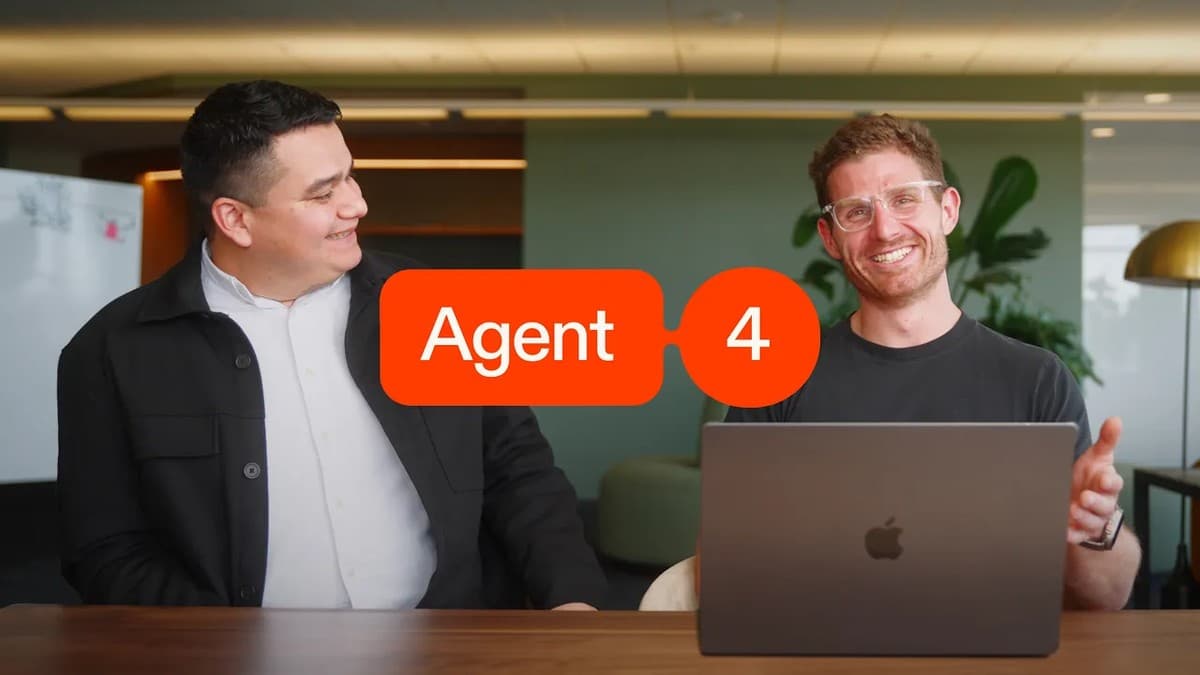
Replit released Agent 4 with four major features: multi-artifact workspaces, an infinite design canvas, a built-in task board, and parallel agents. In a 31-minute deep-dive, Matt Palmer (Head of Developer Relations) and Francisco Cruz (Head of Community) walked through each feature using a live demo of a minimalist writing app. This tutorial breaks down how to use each feature step by step, based on that walkthrough.
Related reading:
What you'll learn
- How to create multiple outputs (apps, slides, videos) from a single Replit workspace
- How to use the infinite canvas to design, annotate, and generate mockup variants before building
- How to manage features with the task board and merge completed work back to your main app
- How to run parallel agents on different features simultaneously
You don't need to know how to code. Replit runs entirely in the browser, and everything here is done by typing plain English.
Step 1: Create everything in one workspace
Before Agent 4, each Replit project produced one output: a web app. Now a single workspace can generate multiple artifacts, which are deliverables like apps, slide decks, video animations, data dashboards, and mobile apps.
Open Replit and write your prompt
Go to replit.com and type a description of what you want to build in the prompt box. You can choose the output type: web app, mobile app, slides, animation, or design. In the demo, Palmer started with a prompt for a personal portfolio site and selected "design" as the output type.
Add more artifacts to the same project
Once your first artifact exists, you can ask Agent to create additional ones within the same workspace. Palmer showed this by building a writing app, then asking Agent to generate a separate marketing site for it. Both lived in the same project.
Deploy with one click
When you're ready to publish, click the deploy button and each artifact gets its own URL. If you have two apps in one project, each gets a separate deployment. You can also attach a custom domain directly from the publishing tab.
Step 2: Design on the infinite canvas
The infinite canvas is a scrollable, zoomable design workspace with no fixed edges, similar to tools like Figma or Miro. Instead of describing your design only through text, you can sketch, annotate, and visually manipulate mockups before building.
Generate your first mockup
When you submit a design prompt, Agent drops you into the canvas with an interactive mockup. This is not a static image. It is a code-based preview you can scroll through and interact with, just like a real website.
Annotate with drawings and text
Use the canvas tools to draw directly on the mockup. Write notes like "make lowercase" or "change to a paintbrush icon" next to specific elements. Agent can read everything you write on the canvas, so your annotations become instructions for the next iteration.
Edit elements with the element selector
Double-click into a mockup to activate the element selector on the right panel. This lets you click individual parts of the design and edit them directly. Changes appear live on the canvas. Palmer showed this by clicking a quote and adding an exclamation point, which updated instantly.
Generate design variants
Hover over a mockup and click "Make variants." Agent generates multiple alternative designs from your current mockup, placing them side by side on the canvas. In the demo, Agent created four variations of a portfolio landing page for comparison. You can also select a specific element (like a timeline) and generate variants of just that piece.
Apply a design to build a real app
When you find a design you like, click "Apply to" and select "Create something new." Agent takes the mockup and turns it into a functional, deployable application. You can also apply individual element variants to an existing artifact.
The canvas also supports multiplayer editing, meaning collaborators can view and annotate the same canvas in real time.
Step 3: Manage features with the task board
Agent 4 introduces a task board, a visual project management system similar to Kanban boards in tools like Trello or Jira. Each feature request becomes a task that moves through four statuses: draft, ready, active, and done.
Create a new task
From your main app view, click the plus icon and type your feature request. Palmer showed this by asking "What about callouts? Could we have callouts with a little emoji?" for the writing app. This creates a new task in draft status.
Review and approve the plan
Agent analyzes your request and presents a detailed plan before building anything. The task moves from draft to ready (shown as a static blue icon). Open the task to read the plan, then click "Start building" to approve it.
Monitor progress on the board
Switch to the board view to see all tasks organized by status. Active tasks show a dynamic blue icon. You can follow along with what Agent is writing in each task's chat thread.
Merge completed features to main
Each task runs in an isolated version of your app, a separate copy where changes don't affect the main version until you choose to merge them. When a task is done, click "Apply to main" to merge those changes back. The task moves to the done column on the board.
One important detail: if the main version has moved ahead while you were working on a task, you can sync the task version to catch up before merging.
Step 4: Run parallel agents
Parallel agents let you run multiple AI agents on different tasks at the same time, each in its own isolated thread. This is the feature that changes the workflow most dramatically.
Open multiple threads
Instead of sending one request and waiting, create several new threads from the main version. Each thread gets its own agent instance and its own copy of the app. Palmer opened three threads: one for callout blocks, one for text highlighting, and one for a keyboard shortcut overlay.
Approve plans and let agents build
All three threads generate plans independently. Open the task board, review each plan, and click "Start building" on the ones you approve. The agents work simultaneously, each isolated from the others, so a failed experiment in one thread won't break another.
Test and iterate within each thread
Before merging, test each feature in its isolated version. Palmer tested the keyboard shortcut overlay, noticed a visual flicker, and asked Agent to fix it within the same thread. The fix applied only to that thread's version.
Merge features one by one
Apply each completed feature to the main version when you are satisfied. The task board updates in real time as features move to done.
Checklist: Common pitfalls
- Are you merging without testing first? Each thread has its own isolated preview. Open it and test the feature before clicking "Apply to main." Once merged, the changes are in your main version.
- Is your task version out of sync? If you created a thread early and the main version has changed since then, sync the thread to pull down updates before merging. Otherwise the merge may overwrite recent changes.
- Are you putting too much into one thread? Each thread works best as a single, focused feature request. Asking for "callouts, text highlighting, and a new sidebar" in one thread limits the isolation benefit. Split those into separate threads so you can test and merge them independently.
- Are you waiting for one agent to finish before starting the next? That's the old workflow. With parallel agents, you can open multiple threads right away and let all of them plan and build simultaneously.
- Did you check the canvas for annotations before generating variants? Agent reads your canvas annotations when generating variants. Old sketches or notes you forgot about may influence the output.
Practical implications
For first-time builders
Start with a design prompt on the infinite canvas. Generate variants, pick the one closest to your vision, and apply it as a real app. This lets you see visual options before committing to a direction, which is much easier than describing every detail in text.
For solo builders shipping products
The parallel agents feature is where you save the most time. Instead of waiting for Agent to finish one feature before requesting the next, open three to five threads at once and work through your entire feature list in one session. Think of yourself as a project manager reviewing completed work, not a queue operator feeding tasks one at a time.
For teams
The canvas supports multiplayer editing, and the task board gives everyone visibility into what's being built. One person can work on design variants while another opens feature threads. The isolated versions prevent conflicts because each person's work stays separate until it's reviewed and merged.
Parallel agents require a Pro plan ($100/month) or Enterprise plan. The Core plan ($20/month) supports the canvas, task board, and single-agent workflows (Replit pricing).
Test yourself
- Transfer: You're building a mobile app instead of a web app. How would you use the design canvas differently for a mobile layout versus a desktop landing page?
- Trade-off: You have ten features to add to your app. When would you merge features one at a time versus batching several merges together? What are the risks of each approach?
- Architecture: You're working with two other people on the same Replit project. Design a workflow using threads and the task board that avoids merge conflicts while keeping all three people productive.
- Behavior: How might the shift from "type a request and wait" to "assign tasks to parallel agents" change the way a solo builder plans their work sessions?
Glossary
| Term | Definition |
|---|---|
| Artifact | A deliverable created inside a Replit workspace: an app, slide deck, video, dashboard, or document. One project can have multiple artifacts. |
| Infinite canvas | A scrollable, zoomable design workspace with no fixed boundaries. Similar to a digital whiteboard where you can place, annotate, and compare mockups. |
| Element selector | A panel that appears when you double-click into a canvas mockup. Lets you click individual parts of the design and edit them directly, with live preview. |
| Design variant | An alternative version of a mockup generated by Agent. You can create variants of an entire page or of a single element within it. |
| Task board | A visual board for managing feature requests, organized by status: draft, ready, active, and done. Similar to Kanban boards in Trello or Jira. |
| Isolated version | A separate copy of your app that Agent creates for each task thread. Changes in one isolated version don't affect the main version or other threads. |
| Apply to main | The action that merges changes from an isolated task version back into the main app. Similar to merging a branch in version control. |
| Parallel agents | Multiple AI agents working on different tasks simultaneously, each in its own thread and with its own isolated app version. |
| Mockup | A visual draft of what a design will look like before it is fully built. On the Replit canvas, mockups are interactive and code-based, not static images. |
| One-click deployment | Publishing your app to a live URL with a single button click. No manual server configuration needed. |
| Flow state | A mental state of deep, uninterrupted focus. Parallel agents support this by eliminating the wait time between tasks. |
| Multiplayer | Multiple people working in the same Replit project at the same time. All changes are visible in real time. |
| Custom domain | A personalized web address (like myapp.com) that you can connect to your deployed Replit app instead of the default replit.app URL. |
| Vibe coding | A development style where the user describes what they want in everyday language and AI writes the code. No manual programming required. |
Sources and resources
Want to go deeper? Watch the full video on YouTube →