10 Practical Tips for Better AI-Assisted Coding
Key insights
- Context is the biggest unlock: provide enough of it, manage it actively, and don't let auto-compaction decide what to keep
- Always start with a plan. Plan mode forces the AI to reflect instead of jumping to the first solution
- Skills, sub-agents, and hooks let you build compounding workflows where the AI improves over time
This is an AI-generated summary. The source video may include demos, visuals and additional context.
In Brief
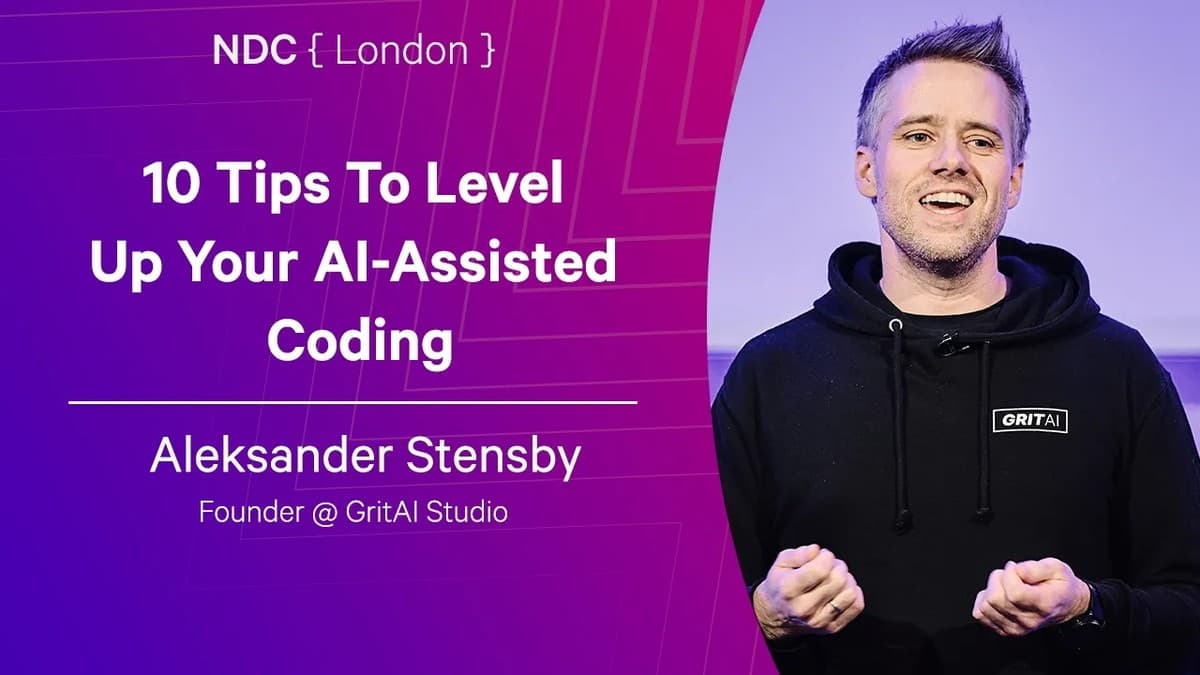
Aleksander Stensby, founder of GritAI, spent 20 years writing code, stepped away to run companies, and came back to find that AI had changed everything. At NDC London 2026 he shares 10 concrete tips for getting more out of AI coding assistants like Claude Code and Cursor. The talk covers everything from context management and plan mode to sub-agents, hooks, and running six agent windows in parallel. The core message: treat AI as a collaborator you iterate with, not a tool you fire prompts at and discard when results are mediocre.
Why try again (even if you tried before)
Stensby opens with a frank observation: many experienced developers tried AI coding assistants and walked away unimpressed. The problem is that their baseline is outdated. Two years ago, AI-assisted coding was unreliable. Even six months ago it was noticeably weaker than today. Something shifted with the release of Opus 4.5, creating what Stensby calls a "before and after" moment.
He points to Boris Cherny, creator of Claude Code at Anthropic, who reported that in the last 30 days of December, Claude Code wrote all of his code. Another developer went from writing 80% of the code himself to having AI write 80% in just two months.
"The models we use today are the worst models we're going to use for the rest of our lives," Stensby says. His advice: if your employer only gives you access to GitHub Copilot, push for tools like Claude Code or Cursor. The max plan costs $100-200/month, and the productivity gains far outweigh the expense.
The mindset shift
Stensby argues that the biggest unlock is not technical, it is about mindset. Stop thinking of AI as a tool and start thinking of it as an eager intern. When a tool gives mediocre results, you throw it away. When an intern gives mediocre results, you give feedback and iterate. This leads to what the company Every calls "compound engineering": instead of cold-starting every session, you work together with the AI so it learns from mistakes and improves over time. The simplest way to start is asking the AI to reflect on a debugging session and save the learnings to a markdown file.
The 10 tips
Tip 1: Context is king
This is the most important tip, and Stensby returns to it throughout the talk. When you don't provide enough context, the AI fills in the gaps with guesses, and that's the main source of hallucinations.
But context is also a scarce resource. A typical context window holds about 200,000 tokens (roughly 150,000 words), and part of it is already filled with instructions and tool definitions before you type your first prompt.
Step 1 — Set up your rule files
Create a CLAUDE.md file (or equivalent for your tool) with project-specific instructions. Use Claude Code's /init command to generate a good starting point, even if you use a different coding agent. The generated file works in Copilot and Cursor too.
Step 2 — Tell the AI to ask questions
Add an instruction like "use the ask user question tool to ask clarifying questions before you proceed" to your configuration. This prevents the AI from making assumptions when something is unclear.
Step 3 — Monitor and manage context actively
Turn on context usage display (it's off by default in most tools). When you approach the limit, ask the AI to summarize progress to a markdown file, then clear the context and continue from that file.
Step 4 — Keep your rule files updated
After debugging sessions, tell the AI to add learnings to memory. The biggest mistake is setting up rule files once and forgetting about them.
One powerful trick: sub-agents in Claude Code get their own dedicated context windows. This means you can fork a task to a sub-agent, keeping your main conversation clean. Whatever happens in the sub-agent stays there, and your main thread only gets the result back. This effectively gives you unlimited context.
Tip 2: Feed the right documentation
Instead of hoping the AI knows the correct version of a framework, point it directly to the documentation. Most frameworks now offer a "copy to markdown" option in their docs. Download the relevant files and include them in your project folder.
For on-demand documentation lookup, Stensby recommends Context7, an MCP (Model Context Protocol) server that lets the AI search for framework docs when it needs them.
Tip 3: Use skills
Skills are instruction sets that trigger automatically when the AI encounters specific situations, like touching test files or working in a front-end folder. They fire without you asking for them, and that's what makes them powerful.
Use cases Stensby highlights:
- Testing guidelines: triggers whenever the AI creates or modifies test files
- Front-end design rules: enforces your style guide automatically
- Security rules: activates when the AI touches security-sensitive code
- PR review guidelines: triggers during pull request reviews
The key advice: don't just download random skills from the internet. Ask your AI to create skills based on patterns in your specific codebase.
Tip 4: Always start with a plan
Boris Cherny's top recommendation, and Stensby supports it fully. Plan mode forces the LLM to reflect on the task instead of jumping to the first obvious solution. LLM stands for Large Language Model.
In Claude Code, press Shift+Tab to enter plan mode. Once the plan appears, press Ctrl+G to open it as an editable markdown file where you can add, remove, or change steps. When you save and close it, that becomes the plan.
Stensby uses plan mode even for small tasks. He also has a /idea slash command on his phone that turns rough ideas into structured GitHub issues, complete with a codebase-aware specification.
A key unlock in any plan is defining acceptance criteria. What does "done" look like? What does "great" look like? Without clear goals, long-running agents produce random outputs.
Tip 5: Break tasks down
Smaller tasks produce better results, with or without AI. Stensby recommends using a tracking system like GitHub Issues, Azure DevOps, Linear, or even markdown files to structure tasks.
One workflow that saves context: when a plan has multiple phases, complete one phase at a time. Ask the AI to update the progress in your plan file, then clear the context and start fresh. This feels counterintuitive because you lose the conversation history, but the trade-off is worth it. LLMs work well with markdown files, so the plan document serves as a compact, high-quality context.
A caution on MCP servers: the GitHub MCP loads 30-40 tool definitions upfront, which consumes a substantial portion of the context window before you type anything. CLI-based tools (like the GitHub CLI) run outside inference and don't pollute your context. Stensby now uses the GitHub CLI almost exclusively instead of the GitHub MCP.
Tip 6: Pick the right model
Stensby almost removed this tip because his advice is simple: use the best thinking model available, even for small tasks. The time you save by using a cheaper, faster model is eaten up by debugging its mistakes.
Boris Cherny now uses Opus 4.5 for everything. On a $100-200/month max plan, the costs are capped anyway.
If you must compromise, use a thinking model for planning and switch to a faster model for execution. Cursor's Composer model is fast and surprisingly capable for simpler tasks.
Tip 7: Use the tools
The Claude Code ecosystem offers several tools that work across coding agents:
- Slash commands: reusable prompt shortcuts. If you say the same thing more than once, turn it into a slash command. They're just markdown files with YAML front matter.
- Sub-agents: separate AI processes with their own context windows. You can chain them together, run them in parallel, or have a main agent delegate work to specialized sub-agents (architect, front-end, back-end, testing).
- Code simplifier: Anthropic's open-source agent that addresses one of the biggest problems with AI-generated code. AI tends to overengineer, leave dead code, and add more than necessary. The simplifier runs after the coding is done and cleans up the output.
A useful trick: in slash commands, use an exclamation mark to execute bash commands outside of inference. The output feeds back into the slash command as context without consuming tokens on the LLM call.
Tip 8: Hooks and long-running agents
Hooks are scripts that trigger on specific events: before a tool runs, after a tool runs, or when the agent stops. They run outside inference, meaning they enforce rules without relying on the LLM to follow instructions.
The most discussed pattern is the "Ralph Wigum" loop, named after an internet meme. It uses a stop hook combined with acceptance criteria to keep the agent running until the job is done. In practice, the hook intercepts the agent's "I'm done" signal, checks whether the acceptance criteria are met, and if not, tells the agent to keep going.
Some teams have run agents for a week straight using this approach. Stensby is more cautious. He sees value in long-running agents for greenfield projects, legacy refactoring, or test coverage improvements, but for most day-to-day work, he prefers being the human in the loop.
Tip 9: The skills marketplace
Skills have been adopted by all major coding agents. Vercel launched skills.sh, a marketplace that hit 30,000+ skills within roughly two weeks of launch.
Stensby recommends one skill in particular: the front-end design skill. It produces genuinely creative designs instead of the generic purple gradient look that most AI-generated front ends have. You can also combine it with your company's style guide for on-brand results.
The overarching advice: use the marketplace for inspiration, but create skills tailored to your codebase and workflow. Share useful skills with your team by checking them into your repository.
Tip 10: Run multiple agents and be the human in the loop
Once you're comfortable with a single agent, the next step is splitting your screen and running two. Stensby runs six agent windows simultaneously and describes that as his cognitive limit for orchestrating agents.
Beyond local agents, background agents can work asynchronously. You can trigger them from GitHub (with @claude or @cursor), from Slack, or from web interfaces. They spin up a virtual environment, check out the code, work on a branch, and create a pull request for you to review.
Claude Code also supports sending tasks to the cloud with the ampersand prefix, then teleporting the session back to your local machine with /tp when you're ready to review.
Stensby's final point: own what you produce, even when AI wrote it. AI agents make mistakes, they can be convincing when wrong, and they tend to agree with you even when they shouldn't. Even Linus Torvalds admitted to vibe coding, though not on the Linux kernel. Use AI to help, but stay accountable for the result.
Checklist: Common pitfalls
- Are you treating AI as a disposable tool? Shift to thinking of it as a collaborator. Give feedback, iterate, and ask it to learn from mistakes instead of discarding it after poor results.
- Did you provide enough context? Vague prompts produce vague results. Point the AI to specific files, documentation, and folder paths instead of saying "fix this."
- Are you letting auto-compaction decide what to keep? Manually summarize progress and clear context before hitting the window limit. You control the context, not the AI.
- Are you skipping plan mode? Even for small tasks, Shift+Tab (Claude Code) or equivalent forces the AI to think before acting. Review and edit the plan before proceeding.
- Are you downloading random skills? Skills and slash commands should be tailored to your codebase. Use community resources for inspiration, then build your own.
- Is the GitHub MCP eating your context? Switch to CLI equivalents. The GitHub CLI doesn't load tool definitions into the context window.
- Are you running a single agent when you could run two? Start by splitting your screen. Even two agents working in parallel can dramatically increase your throughput.
Remember: Getting mediocre results from AI doesn't mean the technology is inadequate. It usually means the AI needs more context, better instructions, or a different model.
Practical implications
For beginners
Start with one change: create a CLAUDE.md (or equivalent rule file) for your project. Run /init in Claude Code to generate a starting point. Then add one instruction: "ask clarifying questions before proceeding." These two steps alone will significantly reduce hallucinations and wasted time.
For experienced developers
Invest in compound engineering. After every debugging session, ask the AI to reflect on what went wrong and save the learnings. Build a library of slash commands for tasks you repeat. Use plan mode for everything, even small features. The upfront investment pays back in every future session.
For teams
Share rule files, skills, and slash commands through your repository. Set up a team CLAUDE.md with shared conventions, and let each developer maintain a personal one for preferences. Use hooks for guardrails that the team agrees on: no destructive git commands, mandatory test runs, code simplification before PRs.
Test yourself
- Transfer: Stensby manages context by summarizing to markdown files and clearing the window. How would you adapt this technique for a non-coding use case, like writing a research paper with AI?
- Trade-off: Using the best thinking model (Opus 4.5) for every task costs more tokens and takes longer per request. When would you choose a faster model despite the higher risk of errors?
- Architecture: Design a sub-agent setup for a full-stack project. Which specialized agents would you create, what would each one's context include, and how would they communicate?
- Behavior: Stensby warns against just accepting AI output without review. How might always using plan mode change a developer's approach to problem-solving over time?
- Trade-off: The Ralph Wigum pattern can keep an agent running for days. What guardrails would you put in place to make this safe for a production codebase?
Glossary
| Term | Definition |
|---|---|
| Acceptance criteria | A clear definition of what "done" looks like for a task. Used to evaluate whether an agent has completed its work satisfactorily. |
| Auto-compaction | When an AI agent automatically compresses older parts of the conversation to stay within the context window. Convenient but risky because you don't control what gets removed. |
| CLAUDE.md | A configuration file that gives Claude Code project-specific instructions. Similar to README.md but written for the AI, not for humans. Other tools use equivalent files like .cursorrules. |
| CLI (Command-Line Interface) | A text-based way to interact with software by typing commands. Tools like the GitHub CLI let you manage repositories without a graphical interface. |
| Compound engineering | A philosophy where AI learns from mistakes over time instead of cold-starting each session. Coined by the company Every. Think of it as building institutional knowledge for your AI assistant. |
| Context engineering | The practice of carefully selecting what information to give the AI. Good context engineering means high-impact information in limited space. |
| Context window | The amount of text an AI model can process at once. Typically 200,000 tokens for coding agents. Like a whiteboard: once full, something must be erased to add new content. |
| Hook | A script that runs on a specific event (before a tool runs, after a tool runs, or when the agent stops). Used for guardrails and automation outside the LLM's inference. |
| Inference | When the AI model processes your input and generates a response. Everything the LLM does to turn your prompt into output. |
| LLM (Large Language Model) | The AI model that powers coding assistants. Trained on massive amounts of text to understand and generate code and natural language. GPT-5 and Claude are examples. |
| MCP (Model Context Protocol) | A standard for connecting AI assistants to external tools like GitHub, Slack, or browsers. Works like a universal adapter between the AI and third-party services. |
| Plan mode | A feature that forces the AI to create and review a plan before implementing changes. Activated with Shift+Tab in Claude Code. Produces better results because the model reflects instead of rushing. |
| Ralph Wigum loop | A pattern that uses a stop hook to keep an AI agent running until acceptance criteria are met. Named after an internet meme. Enables long-running autonomous tasks. |
| Rule file | A configuration file (CLAUDE.md, .cursorrules, etc.) that tells an AI coding agent how to work in a specific project. Contains coding standards, conventions, and project-specific instructions. |
| Skills | Auto-triggered instruction sets that activate when the AI encounters specific file types or situations. Unlike slash commands, they fire without being explicitly called. |
| Slash command | A reusable shortcut prompt triggered by typing /command-name. Essentially a markdown file with YAML front matter that contains instructions the AI follows. |
| Sub-agent | A separate AI process spawned by the main agent, with its own dedicated context window. Enables parallel work and effectively unlimited context by forking tasks. |
| Token | The smallest unit an AI model works with. Roughly 3-4 characters. "Hello world" is two tokens. Context windows and pricing are measured in tokens. |
| Work tree | A Git feature that lets you check out multiple branches simultaneously in separate directories. Useful for running multiple agents on different tasks without branch conflicts. |
Several of these habits connect directly to how Claude Code started and the working style behind shipping 30 PRs a day with Claude Code.
Sources and resources
Want to go deeper? Watch the full video on YouTube →